
How to create your own MathKeys symbols to grow your keyboard
Type a LaTeX command, preview the rendered symbol, then save it as a mint key. Right-click any key to edit or clear it, and use Add and Clear to organize the row. All without leaving the popup.
- Create with LaTeX and see a rendered preview before you save
- Right-click a key to edit or clear it
- Organize the row with the Add and Clear buttons
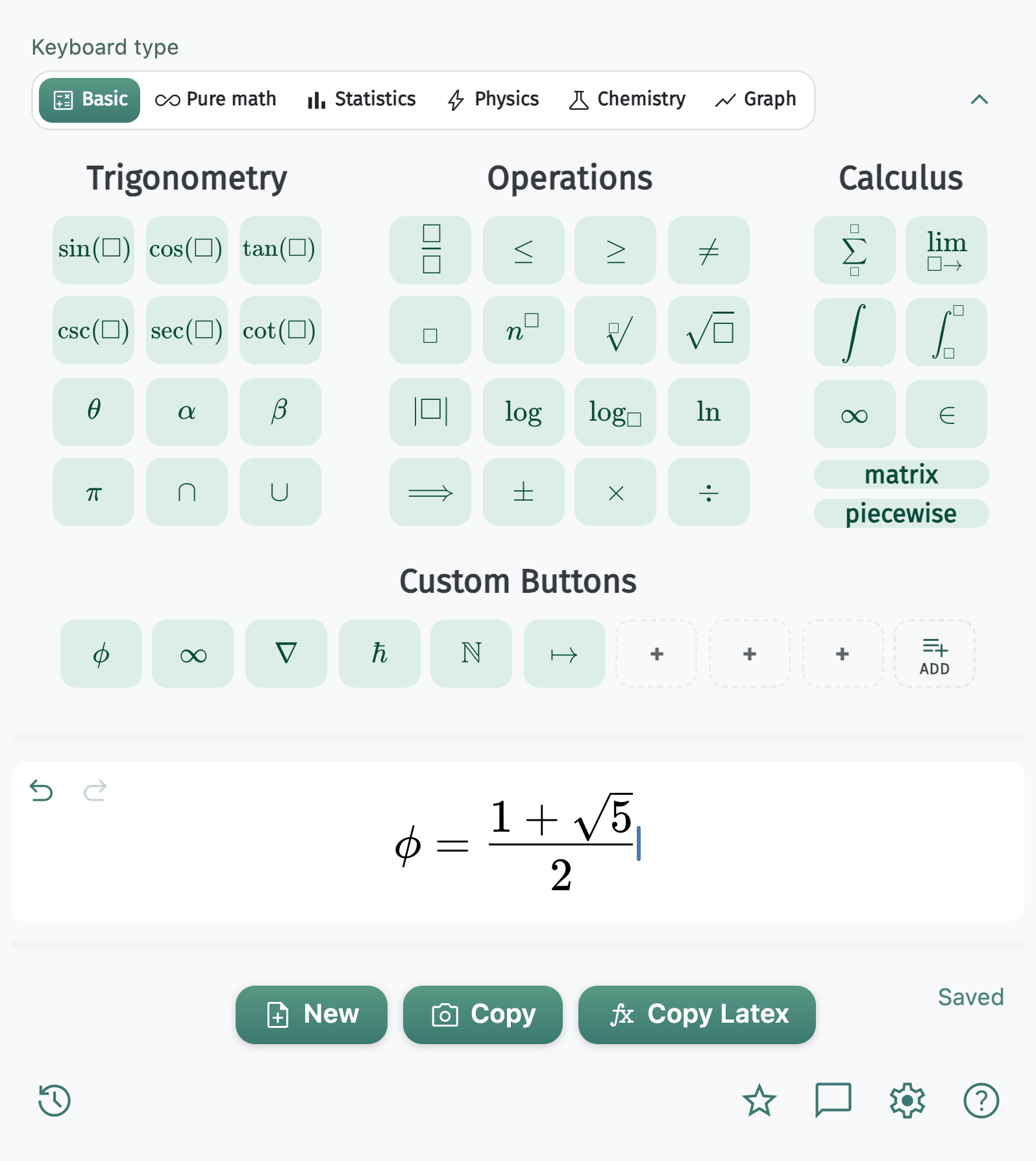
Three easy steps
All done in the popup. No additional page and no reloading.
Step 01
Press an empty + slot
The Custom Buttons panel sits under the main keyboard in every mode. Mint keys are already saved; dashed tiles with a + are empty. Click any empty + to open the editor for that slot.
Need more room? Press ADD at the end of the row to grow another line of slots, and Less to shrink back.

Step 02
Type the LaTeX to insert
In the Custom Button dialog, click the LaTeX to insert field and type the command, for example,
\nabla. A live preview appears under the field, so you can confirm the key face before you save it.Tips
Use a real LaTeX command starting with a backslash, not an HTML entity like
φ. Get started with short commands.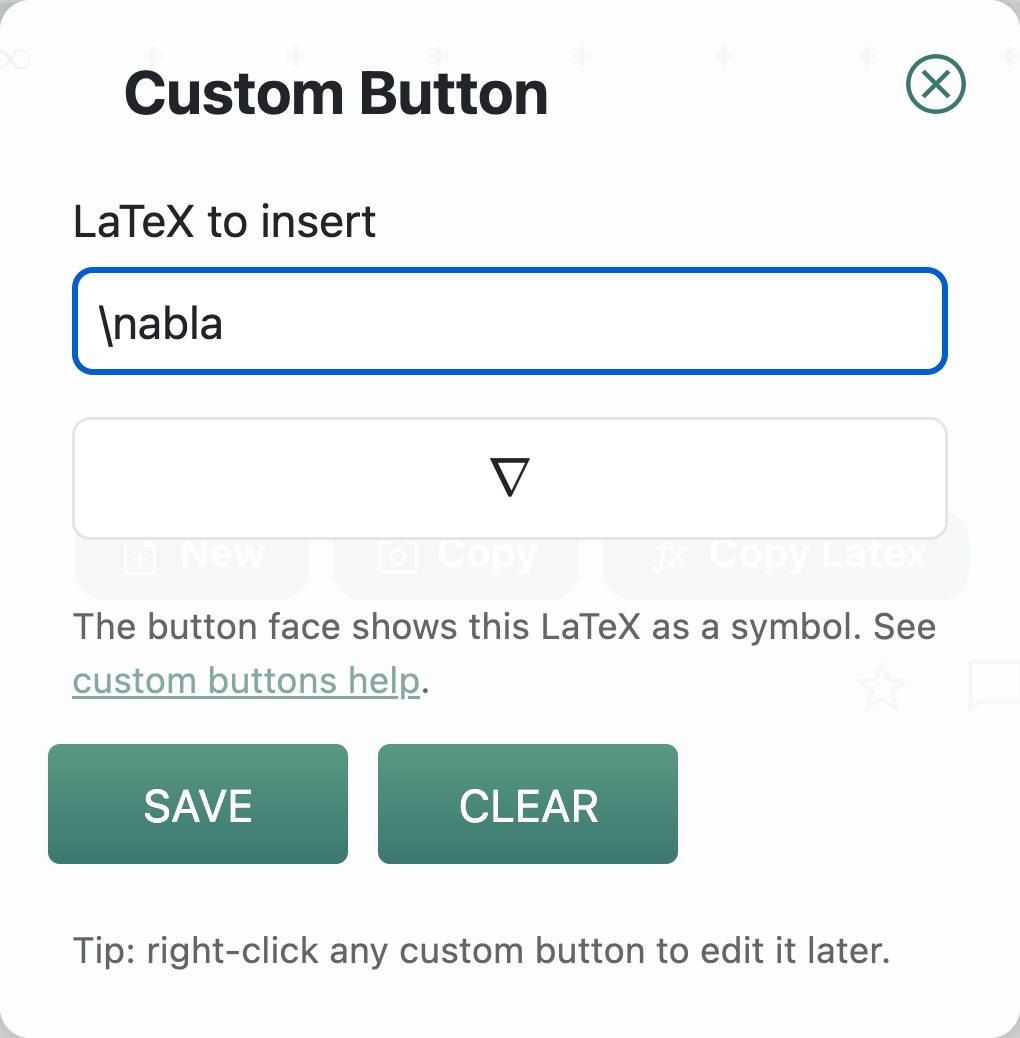
Most popular custom buttons by real students:
\infty\nabla\phi\hbar\mathbb{R}\mapsto\therefore\partial
Step 03
Simple save.
Press SAVE. The dialog closes and your new mint key replaces the empty +. Click that key any time to insert the LaTeX into the equation field. CLEAR empties a slot instead.
To change a key later, right-click it — or long-press on a trackpad — to reopen the same dialog.

Learn more about the extension here.