 MATH
MATH 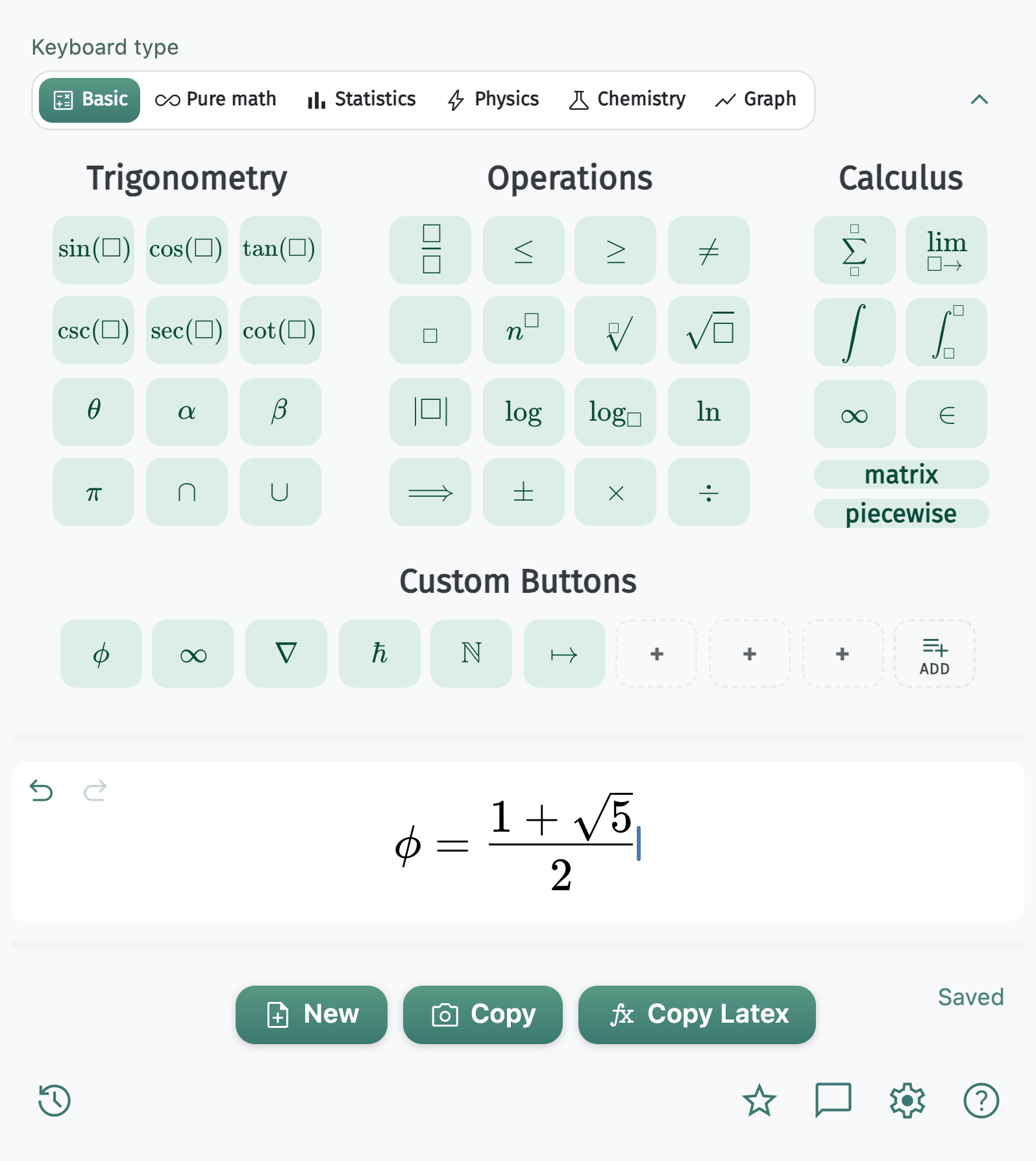
Save the symbols you use most
Custom buttons live in every keyboard mode. Empty slots show a dashed +. Fill one once — the key face renders the symbol automatically, so you never need a separate name.
- Click + to create a new key
- Type LaTeX like
\inftyor\nabla - Press SAVE — the symbol appears on the key
- Right-click any key later to edit or clear it
Create a button in three steps
-
Step 01
Press an empty + slot
Find the Custom Buttons panel under the main keyboard. Mint keys are already saved; dashed tiles with a + are empty. Click any empty + to open the editor for that slot.
Need more room? Press ADD at the end of the row to grow another line of slots. Use Less later if you want to shrink back.

Empty slots show a dashed border and a +. -
Step 02
Type the LaTeX to insert
In the Custom Button dialog, click the LaTeX to insert field and type the command — for example
\nabla,\phi, or\mathbb{R}. A live preview appears under the field so you can confirm the button face before saving.Use a real LaTeX command (starting with
\), not an HTML entity likeφ. The face is rendered with MathLive from the same LaTeX the key will insert.
Type LaTeX, check the preview, then press SAVE. -
Step 03
Save — then use the key
Press SAVE. The dialog closes and your new mint key replaces the empty +. Click that key anytime to insert the LaTeX into the equation field. Use CLEAR in the dialog if you want to empty a slot instead.
To change a key later, right-click it (or long-press on some trackpads) to reopen the same dialog.

After SAVE, ∇ appears as a mint key ready to click.
Examples that work well
Start with a short command. These are common picks:
\inftyInfinity\nablaNabla / del\phiPhi\hbarReduced Planck’s constant\mathbb{R}Real numbers\mapstoMaps to\thereforeTherefore\partialPartial derivativeAlso available in Options
You can edit the same custom LaTeX list from the extension’s Options page (right-click the toolbar icon → Options). Storage is shared — changes in the popup or in Options stay in sync across keyboard modes.